
Control overview
The Location control allows you to conditionally show or hide content based on where the block is located on your website and the attributes of its location. For example, you could limit block visibility based on a post’s categories and tags, or you could display specific content depending on the author of the post.
This control was built with block themes in mind. If you use a theme that supports the Site Editor, you will be able to unlock the true potential of the Location control. Similarly, you can dynamically control widgets in the block-based widget editor screen available in WordPress 5.8+.
Usage examples
There are many applications for the Location control. Here are a few examples to get you started.
- Display unique calls to action or advertisements depending on a post’s category with the Post Taxonomy rule.
- Assume your theme registers a sidebar widget area. Using the block-based Widget Editor, display a related posts block on all posts but hide the block on other post types with the Post Type rule.
- In the Site Editor or within a Query block, display a default featured image if the post does not have one set with the Featured Image attribute rule.
- Using the Site Editor, display different navigation blocks depending on the current page of your website with the Post rule. For example, you could hide your main navigation on the checkout page of your online store.
- Using the Site Editor and the Archive rule, dynamically display a call to action in an archive template depending on a specific taxonomy. Say you have a post category called “Tutorials.” On the “Tutorials” archive page, create a banner to promote your video tutorials on YouTube.
Configuration
How to enable
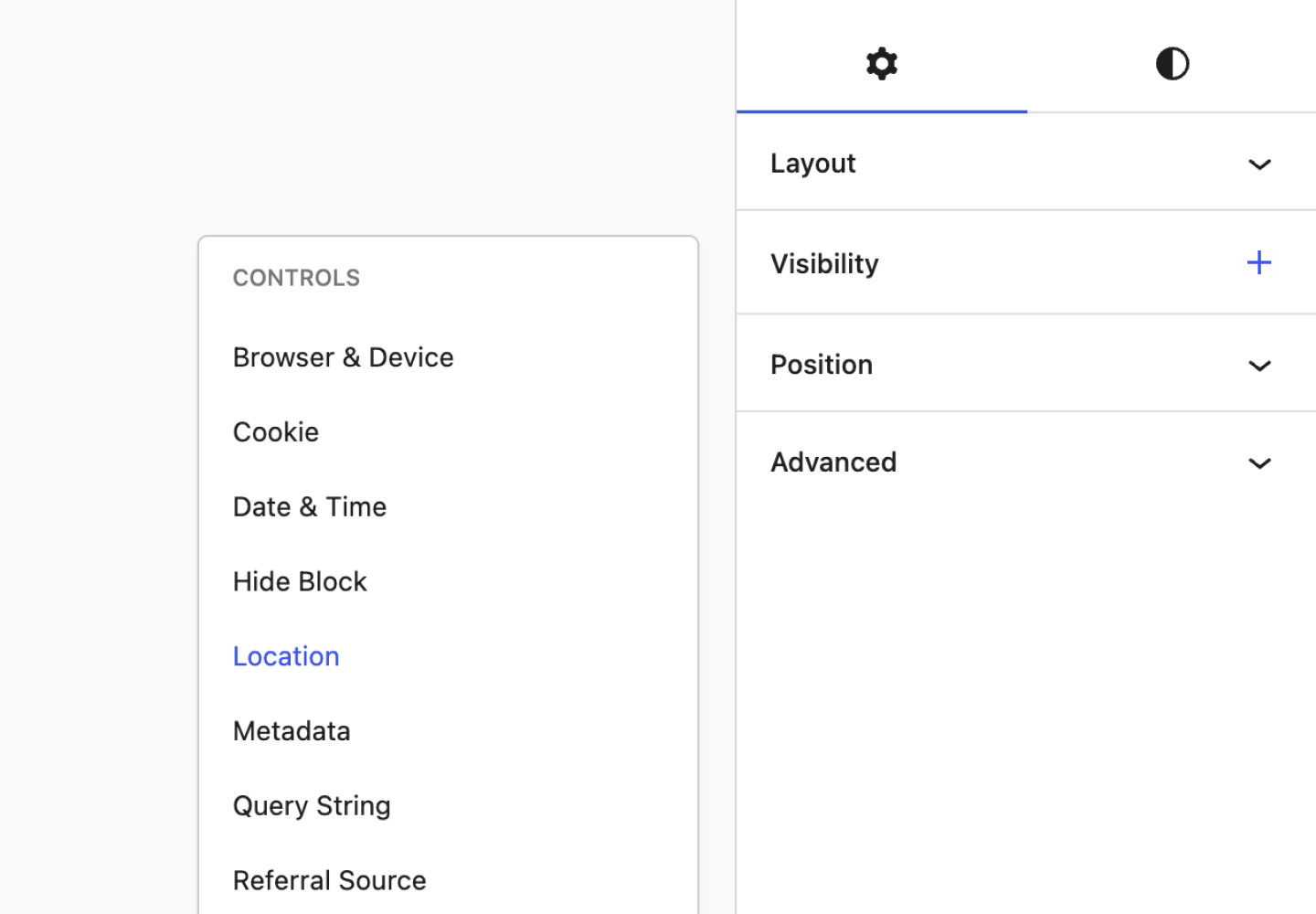
Click on any block in the Block Editor and navigate to the Visibility panel in the Settings Sidebar. Depending on your plugin settings, you will see either a vertical ellipsis or a plus icon. See the screenshot below. Click on the icon and select Location. The Location control panel will be added to the selected block.
How to configure
The Location control uses rules and rule sets to determine whether the block should be visible. Below is a thorough overview of each available rule.
Let’s configure the block to be visible if the current post has the category “Tutorials” AND the post was written by “Nick Diego.”
Steps to complete
- Navigate the Location control settings in the Visibility panel.
- Select “Post Taxonomy” from the rule selector.
- Choose “Category” from the taxonomy selector.
- Select “Is at least one of the selected” from the condition selector.
- Choose “Tutorials” from the terms selector.
- Click on the “Add rule” button to add a second rule.
- Choose “Author” from the rule selector.
- Select “Is any of the selected” from the condition selector.
- Choose “Nick Diego” from the author selector.
The resulting configuration should resemble the screenshot below.

Terminology and notes
When working with the Location control, you will see many references to the term “post”, particularly in the rules detailed below. This can be confusing, so we want to clearly detail the terminology here. In short, “post” generally refers to any page, post, or custom post type on your site. Third-party plugins often add custom post types. For example, WooCommerce adds the products custom post type.
How to disable
If you want to disable the Location control at the block level, click on the vertical ellipsis icon in the toolbar and deselect it. The control can also be disabled globally in the plugin’s Visibility Control Settings.
Note that if this control is disabled globally, any blocks that are actively being hidden by the Location control will become visible again.
Rules and rule sets
Similar to other controls in Block Visibility, the Location control is powered by rules and rule sets. All rules within a rule set must be satisfied for the selected block to be visible. However, you can also create multiple rule sets. Only one rule set needs to apply for the block to be visible.
Within a rule set, you are creating AND conditions between multiple rules. Between two rule sets, you are creating OR conditions.
Rule errors can occur, for example, if rule inputs are not completely filled out or if the rule is based on a product that has since been deleted from your store. In these situations, the plugin defaults to showing the block unless other rules apply, which would hide the block.

Type rules
The Type category currently has only one rule. In the future, expect more options related to the Site Editor, such as rules based on templates and template parts.
Page Type
The Page Type rule should not be confused with the Post Type rule detailed below. This rule allows you to conditionally display block content based on a set of conditionals that define how the current page is used and/or what it is.
The available conditions are:
- Front Page (Homepage) – The page configured in the WordPress admin Reading Settings.
- Posts Page (Blog page) – The page configured in the WordPress admin Reading Settings.
- Singular Page – Is the current page a single post?
- Archive Page – Is the current page an archive?
- Search Page – Is the current page a search results page?
- 404 Page – Is the current page a 404 page?
Post rules
The following rules pertain to post types, taxonomies, and individual posts. As a reminder, posts here refer to native posts, pages, and any custom post types on your website.
Post Type
This rule lets you conditionally display block content based on the post type of the current post. This rule shines when used in conjunction with page templates and template parts in the Site Editor.
Post Taxonomy
This rule lets you conditionally display block content based on the taxonomy terms of the current post. First, choose the taxonomy and then include or exclude individual taxonomy terms. For example, you would use this rule if you only wanted to show a block if the current post had a specific category.
If you want to display blocks only on taxonomy archives, use the Archive Type rule detailed below.
Post
This rule lets you conditionally display block content on specific posts. You first choose the post type and then include or exclude individual posts.
Post ID
This rule lets you conditionally display block content based on the ID of the current post. You can also set multiple IDs.
Post attribute rules
Attribute rules enable conditional block visibility based on various post attributes. Does the post have comments? Is there a featured image set? Who is the post author? Is the post hierarchical, and does it have child posts? The list goes on.
Author
Display blocks based on the current post’s author or if the current user is the post’s author.
Featured Image
Display blocks based on whether the current post has a featured image or not. The available options are:
- Post has a featured image
- Post has no featured image
Excerpt
Display blocks based on whether an excerpt has been set or not. The available options are:
- Post has an excerpt
- Post has no excerpt
Comments
This rule lets you conditionally display block content based on the existence or a specific number of user comments. The available options are:
- Post has comments
- Post has no comments
- Comment count.
Hierarchy
This rule lets you display content based on the hierarchy of the current post and only works for hierarchical post types. The available options are:
- Top level page (no parent)
- Parent page (has children)
- Child Page (has a parent)
This rule pairs nicely with page templates. There are many situations where you may want to display specific blocks on child pages versus parent pages.
Relative Hierarchy
This rule lets you display content based on the relative hierarchy of the current post and only works for hierarchical post types. The available options are:
- Is a parent of
- Is not a parent of
- Is a child of
- Is not a child of
Supports
This rule lets you display content based on what the current post type supports. It’s a convenient rule to use in post templates or Query blocks. The available options are:
- Comments
- Excerpts
- Featured Images
Archive rules
The Location control currently contains two rules for configuring archive-based conditional visibility. To get the most out of these controls, you will need to use the Site Editor or the block-based Widget Editor.
Archive Type
This rule allows you to conditionally display block content on archive pages based on the archive type. The type includes the post types and taxonomies, as well as author and date archives.
Archive
This rule provides more control than the Archive Type control detailed above. It allows you to conditionally display block content in archives based on individual taxonomy terms and specific authors.
Taxonomy attribute rules
The Location control currently contains three rules for configuring block visibility based on taxonomy archive attributes. To get the most out of these controls, you will need to use the Site Editor or the block-based Widget Editor.
Term Hierarchy
This rule lets you display content based on the hierarchy of the taxonomy associated with the current archive template. It only works for hierarchical taxonomies, like post categories. The available options are:
- Top level page (no parent)
- Parent page (has children)
- Child Page (has a parent)
Relative Term Hierarchy
This rule lets you display content based on the relative hierarchy of the taxonomy associated with the current archive template. It only works for hierarchical taxonomies, like post categories, and only evaluates direct parents and children. Grandparents and grandchildren will be evaluated as false. The available options are:
- Is a parent of
- Is not a parent of
- Is a child of
- Is not a child of
Supports
This rule lets you display content based on what the current taxonomy supports. The available options are:
- Term hierarchy
Hide when rules apply
The block will be visible if the applied rules are satisfied by default. Simply toggle the “Hide when rules apply” setting to hide the block instead.